PIMplify Starter Guide:
From Raw Data to Flawless Product Content
The fastest roadmap to mastering PIMplify. Learn how to set your Company Context, connect your PIM/Excel catalog, select context fields, optimize target attributes, and chain modular prompt building blocks across 50,000+ products.
Connect your PIM or Start with Excel / CSV
PIMplify offers two flexible ways to work with your product catalog:
Connect your shop or PIM system via secure API tokens. PIMplify automatically streams products, updates attributes in real-time, and writes enriched descriptions directly back to your database.
Export a flat file or EAV sheet from your current system. Drag and drop it into PIMplify. Our parser automatically handles EAV pivoting, multi-currency values, and thousands of SKU columns in seconds.
In PIMplify, you simply tick checkboxes for: 1) Context Columns (data the AI should read, e.g., Brand, Materials, Color, Specs) and 2) Enrichment Columns (the exact fields the AI should generate, e.g., body_html or meta_title).
Company Context (Your AI Foundation)
Before writing individual product prompts, configure your global business context once under Settings. This prevents having to repeat your store's background in every single prompt.
Describe your company history, industry authority, and core values. Example: 'We are a dedicated e-commerce brand with 20 years of expertise in technical outdoor apparel.'
Define who your customers are and how you communicate with them (e.g., active, enthusiastic, approachable, addressing the reader directly as 'you').
Highlight key differentiators, sustainability practices, European production, fast dispatch, or extended warranty rules.
PIMplify injects this company context into all AI prompts under the hood, ensuring your tone remains consistent across all 10,000 products, regardless of which team member triggers the batch run.
The Strategy: Build 5 Modular Guides in Your Library
Instead of writing one massive, chaotic 100-line prompt every time, the secret to PIMplify is our modular Guide Library. You create 5 specialized building blocks that you can freely combine with a single click or with the @ search trigger across all your fields and product categories:
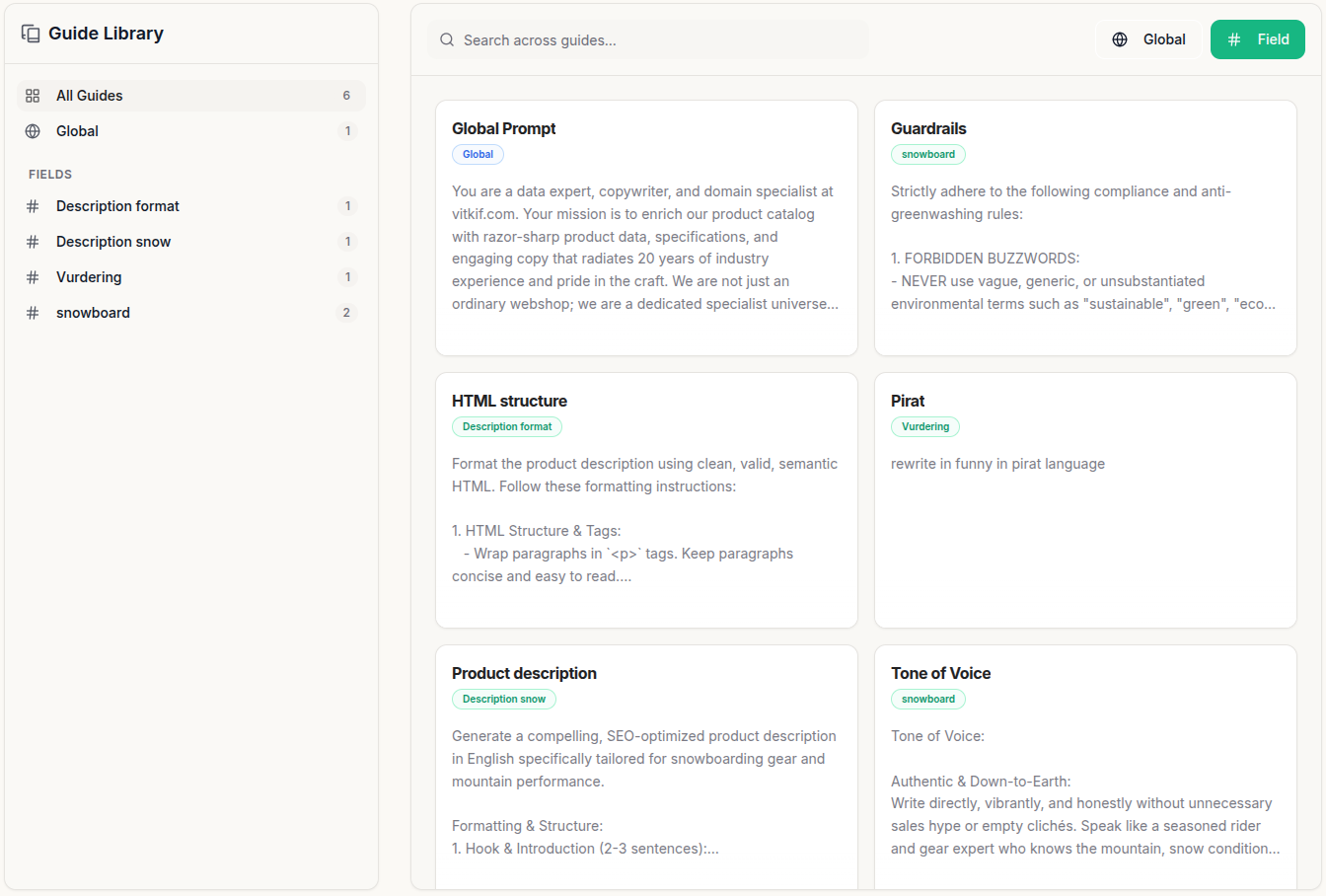
When generating comprehensive product descriptions, you often need both HTML structure, Compliance Guardrails, and Tone of Voice. Instead of copy-pasting everything into one giant text block, PIMplify introduces Attached Guides:
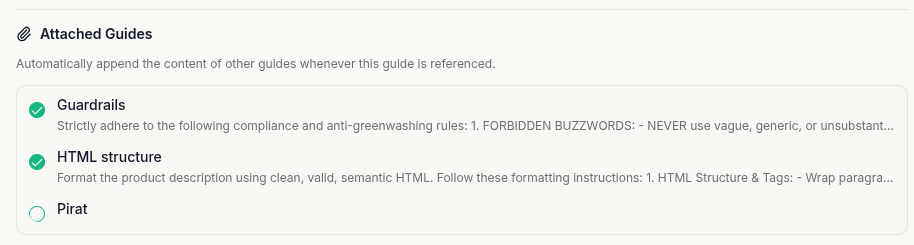
- Open your master prompt (e.g. 'Product description') in the Guide Library (/app/guides).
- Tick the checkboxes under 'Attached Guides' for the sub-guides you want to attach (e.g. HTML structure, Guardrails, and Tone of Voice).
- Whenever you select @Product description in a batch run, PIMplify automatically resolves and attaches the entire prompt chain behind the scenes!
When you select a master guide in a batch run, PIMplify displays green chips (e.g. [✓ HTML structure] [✓ Guardrails]) below the field. If you hover over the tag, you can click 'Unpack to editable text' to customize the template for that specific batch run without modifying the saved library guide.
Global AI Guide & Engine Settings
The Global AI Guide is your store-wide command center. It applies to all columns during the batch run. Here you also configure the underlying AI engine switches:
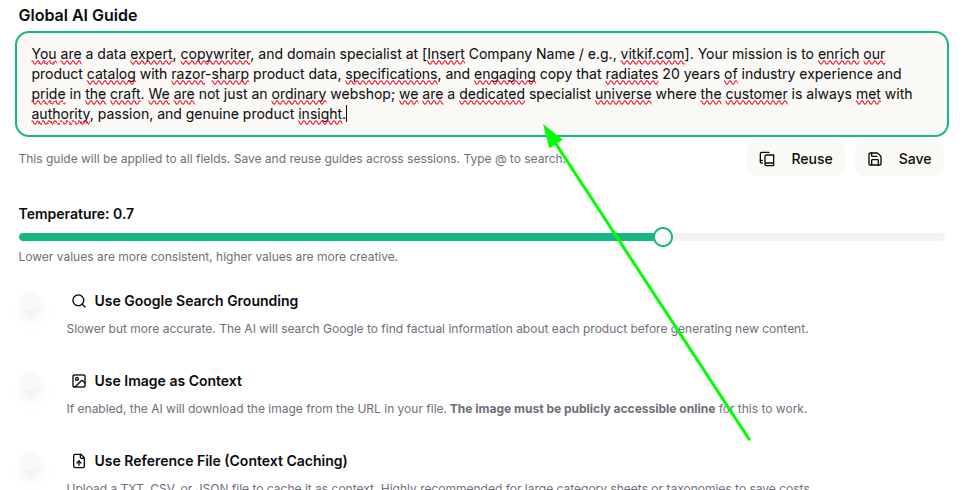
Features like Live Google Search Grounding and Vision AI can significantly increase token consumption and execution time. For 90% of standard e-commerce products with existing spec sheets, basic catalog data is sufficient. Only enable Grounding if you need to research unknown EAN codes, and only enable Vision AI if product specs are missing and must be extracted directly from product images.
Engine Controls Explained:
Balances creative copywriting flair with strict adherence to technical product specifications.
PIMplify caches your company guidelines and prompt rules in Vertex AI / Gemini memory, slashing token costs by up to 75% on large catalogs.
Enables Gemini to query live Google Search for missing product specs. Use selectively for unknown products.
Directly analyzes product image URLs (materials, cuts, logos, colors). Keep disabled for pure text-based catalog files.
Select Fields for Context (Feed Gemini the Right Data)
In Step 1 of your batch run, you select exactly which catalog fields Gemini is allowed to see. Feeding clean, relevant data is the single most effective way to eliminate hallucinations and reduce token costs:
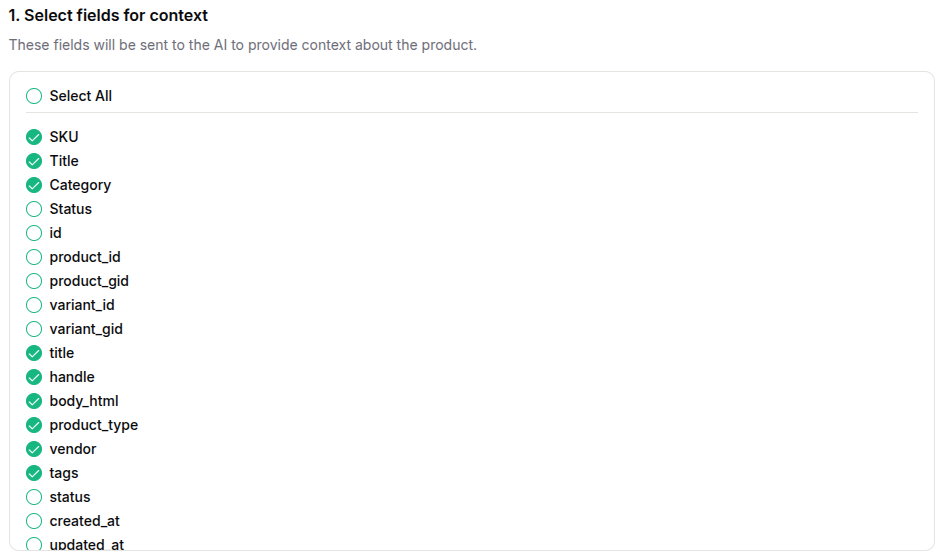
SKU, Title, Category, Vendor, Material, Color, Product Type, Tags, and existing bullet points or raw bullet specifications. These give the AI factual substance for creative and technical copywriting.
Database IDs, product_gid, variant_id, created_at, updated_at, and internal system statuses. These technical fields bloat token usage and add zero value to product descriptions.
Select Fields to Optimize & Assign Field Guides
In Step 2 of your batch run, you choose the exact fields you want Gemini to write or update (e.g., body_html, meta_description, bullet_points, search_tags). You then assign specific field prompts:
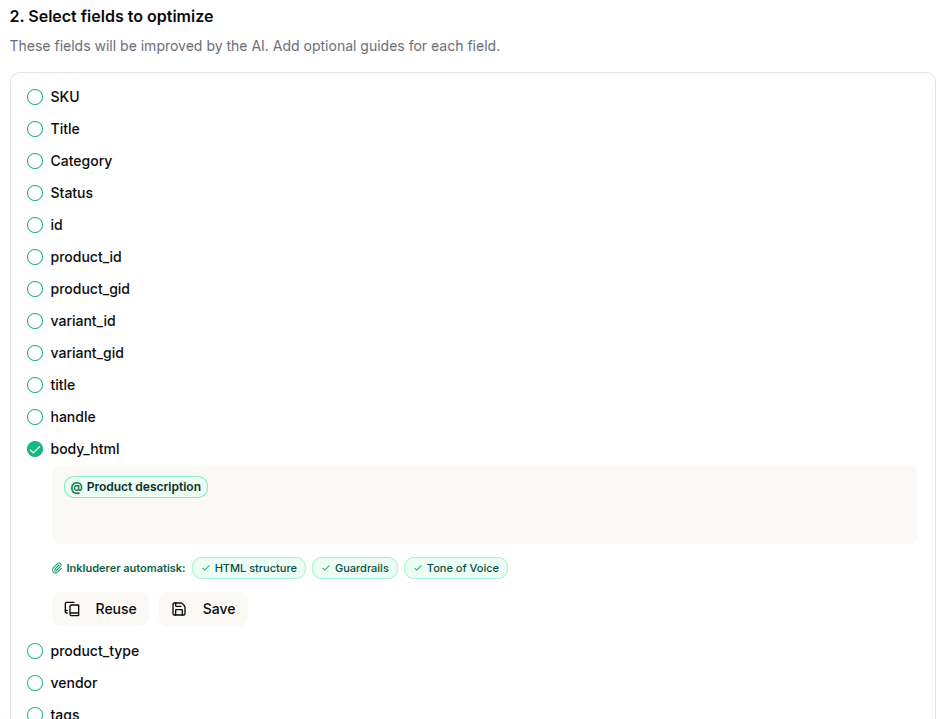
Type '@' or click 'Reuse' to pick any template from your Guide Library. When you pick a master guide like @Product description, PIMplify instantly displays the green attached chips ([✓ HTML structure] [✓ Guardrails] [✓ Tone of Voice]), confirming the entire prompt chain is active!
If you customize a prompt directly in the editor, click 'Save' to store it in your Guide Library for future batch runs.
Template Library for your Guide Library
Now that you understand the architecture of Attached Guides, here are the 4 battle-tested templates you can copy directly into your library under /app/guides:
Template A: HTML Structure & Formatting
Clean Semantic HTML • No Markdown • E-Commerce CMS Ready
Output must be delivered strictly as clean, valid HTML code. Adhere to the following formatting rules:

1. Allowed tags: Exclusively use <p>, <br>, <strong>, <h2>, <h3>, <ul>, and <li>.
2. Headings: Use <h2> for the primary section heading and <h3> for sub-headings when dividing content.
3. Emphasis: Use <strong> to highlight key benefits, core specs, or important keywords.
4. Lists: Use <ul> and <li> for all technical specifications, feature breakdowns, or key highlights.
5. Paragraphs: Use <p> for body copy and <br> for intentional line breaks within paragraphs.
6. Clean markup: Never include CSS styles, classes, IDs, or inline styles in HTML tags.
7. Validation: Ensure all tags are opened and closed properly. Output must be 100% ready for direct CMS/PIM insertion.
8. No Markdown: Never use markdown symbols (like #, ##, or **). Use only the defined HTML tags.
9. Typography: Never use en-dashes (–) or em-dashes (—). Only use standard hyphens (-) when necessary.
Template B: Guardrails & Compliance
Anti-Greenwashing • EU Directives • Legal Safeguards
Strictly adhere to the following business and legal guardrails:

1. Anti-Greenwashing & Environmental Claims:
   - Never use unsubstantiated buzzwords like "sustainable", "eco-friendly", "green", or "planet-positive".
   - Only describe factual materials (e.g., "Crafted with 40% recycled polyester").
   - Only mention official environmental certifications (e.g., OEKO-TEX, GOTS, FSC) if explicitly present in source data.

2. Tone & Addressing:
   - Always address the reader directly in 2nd person: "you" and "your".
   - Write in an active present voice without passive constructions (e.g., write "You experience optimal support" instead of "Optimal support is experienced").

3. Accuracy & Hallucination Prevention:
   - Never invent features, warranty terms, or material compositions not found in the source data.
Template C: Tone of Voice & Personality
Authentic • Engaging • Direct Customer Addressing
Tone of Voice Guidelines:

• Authentic & Down-to-Earth:
  Write directly, vibrantly, and honestly without unnecessary sales fluff or empty clichés. Speak like a style-conscious expert who knows materials and products inside out.

• Technical & Well-Grounded:
  Communicate technical terminology (such as GSM weight, weave type, cut, and fabric structure) clearly, with distinct authority and respect for craftsmanship.

• Modern & Confident:
  Keep language sharp, contemporary, and minimalist with a subtle spark that signals uncompromising quality and effortless style.
Template D: Master Product Description
The Master Template • Chains Templates A, B, and C
Generate an engaging, SEO-optimized product description for the 'Description' field based on the following structure:

1. Catchy Headline:
   Start with an <h2> heading that captures the product's cut, style, and primary purpose.

2. Fit & Silhouette:
   Describe in detail how the item fits. Focus on technical aspects such as shoulder cut, chest width, sleeve length, and drape. Explain why this specific cut performs optimally.

3. Material & Tactile Feel:
   Describe fabric quality, weave, and sensation against the skin (e.g., GSM weight, combed cotton, silky modal, raw texture, or breathability). Make the weight, structure, and softness tangible for the reader.

4. Signature Sign-off:
   Add a brief, memorable concluding remark with personality (e.g., having found your new everyday staple, or how it retains shape wash after wash).

5. Technical Specifications:
   End with a clean <ul><li> bullet list of exact specifications (fabric type, GSM weight, collar/seam construction, and treatment).
Import your first Excel file or connect your PIM system, set your 5 modular guides, and enrich 10,000+ products in minutes.
Explore Dedicated AI Solutions for Product Catalogs
See how these prompt guidelines and rules are executed automatically across our high-volume workflows: